
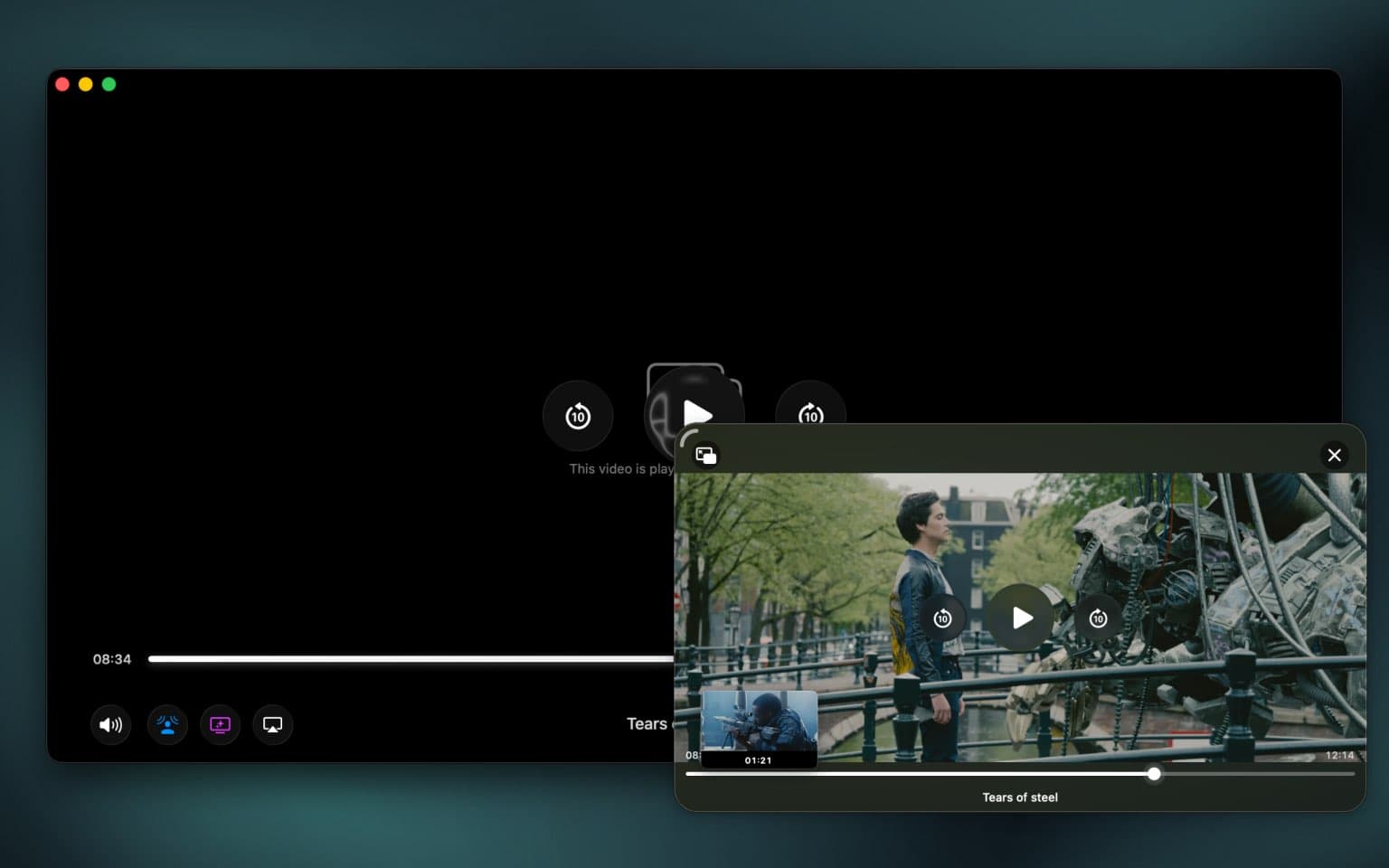
This was the feature that started it all.
Before Vidi, I was a heavy user of other Mac video players. I’m a developer, which means I spend most of my day with a code editor on one side of the screen and a video playing in Picture-in-Picture (PiP) on the other.
But the more I used PiP, the more I hated it.
On almost every Mac player (QuickTime, IINA, Safari), the PiP window is just a "dumb box." It displays the video, and if you hover over it, you get a Play/Pause button. Maybe a close button.
That’s it.
The "Context Switch" Problem
Here was my daily frustration: I’d be coding, watching a show in the corner, and I’d miss a line of dialogue.
To rewind 10 seconds, I had to:
-
Stop typing.
-
Locate the main player window (which was buried behind Xcode or minimized).
-
Bring it to the front.
-
Find the timeline and scrub back.
-
Minimize the window again.
It sounds small, but if you do that multiple times a day, it destroys your flow. I didn't want a "viewer." I wanted a player.
Reimagining PiP with Vidi
I decided to build Vidi because I wanted a Picture-in-Picture window that actually gave me control. I didn't want to choose between "watching" and "working."
Here is what makes Vidi’s Advanced PiP different:
1. Full Timeline Scrubbing (with Preview!)
This is the game-changer. In Vidi's PiP window, you have a full progress bar. You can click to jump anywhere in the video without ever opening the main window.
Better yet, it supports Thumbnail Seek Preview. Hover over the timeline, and you’ll see a small preview of exactly where you are jumping to. You can find that specific scene instantly.
2. Subtitles
In many video players, entering Picture-in-Picture mode means losing your subtitles. The text just disappears. In Vidi, your subtitles stay with you. They are rendered perfectly within the floating window so you never miss a line of dialogue.
3. Know What You're Watching
If you are binge-watching a series, standard players just show video. Vidi’s PiP overlays the file information clearly when you hover: "S03E04 - The Episode Title" You always know exactly where you are in the season.
4. It Keeps You in "The Flow"
The goal of these features isn't just to add buttons; it's to preserve your focus.
With Advanced PiP, you never have to leave your active application. You can manage your media completely from the floating window while your main focus stays on your work, your writing, or your browsing.
Try It in Your Workflow
If you are a multitasker, whether you're a developer, a writer, or just someone who browses the web while watching movies, this feature is built for you.
The Advanced PiP is a standout feature of Vidi Pro.
All new users get a 14-day free trial of Vidi Pro. Download the app, pop out a video, and see how much better your workflow feels when you have actual control.